In-App Bulk Editing For Assets
We’re excited to introduce In-App Bulk Editing — a simple and fast way to update multiple assets at once, directly from your asset list!
This feature is perfect when you need to apply the same value to a specific field across many assets, like Status, Location, User, or Department.
For updates where each asset needs its own unique value, the Bulk Update Import method is still the way to go.
How to Use In-App Bulk Editing
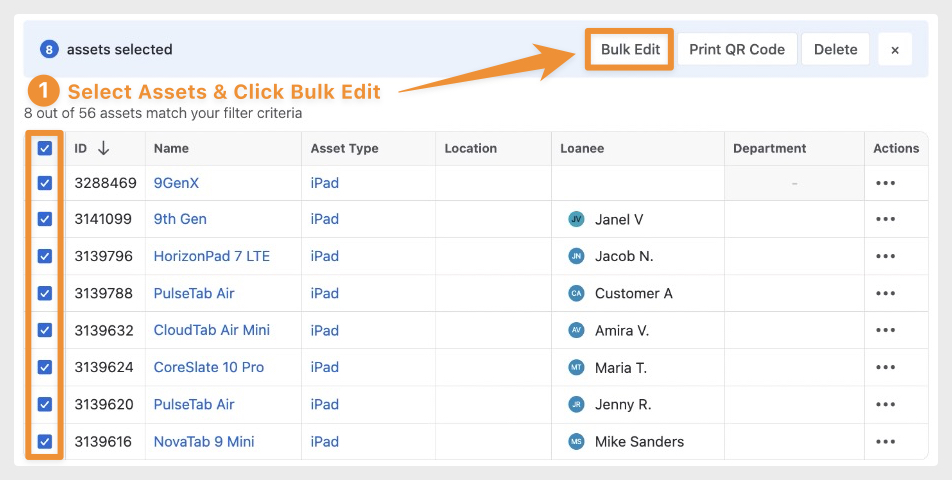
1. Select the Assets
- From your asset list, click the checkbox to the left of each asset you want to update.
- Once two or more assets are selected, the Bulk Edit button will appear at the top right of your screen.
- Click the Bulk Edit button to open the edit panel, which displays all active fields for your selection
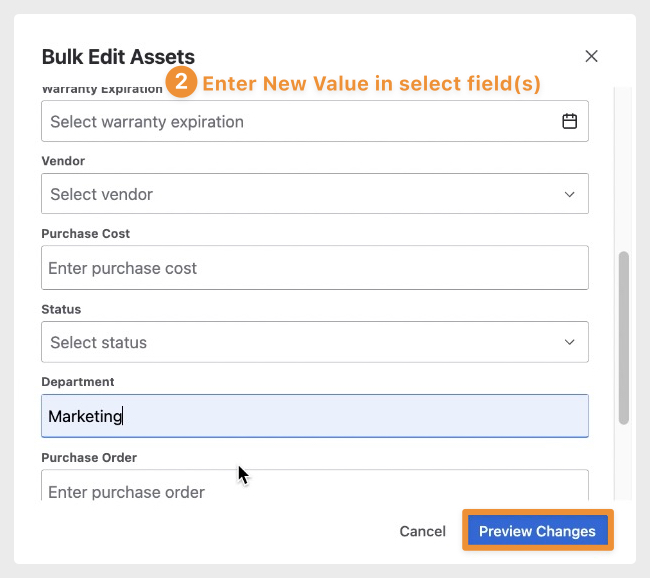
2. Choose the Field(s) to Update
- Enter the new value in the field(s) you want to update.
- Click Preview Changes to review the proposed updates.
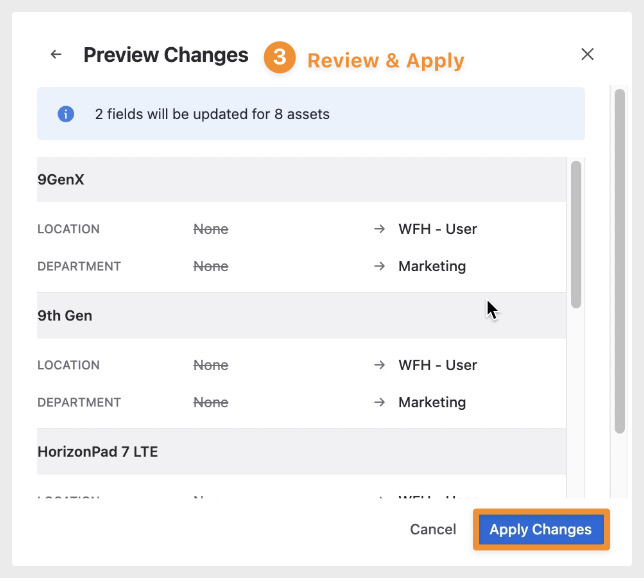
3. Review and Apply
- In the preview panel, review the changes to ensure everything looks correct.
- When you're ready, click Apply Changes to update all selected assets at once.
Prefer to See It in Action?
If you’d rather watch the process step by step, we’ve included a short video below that walks through in-app bulk editing from start to finish.