Getting Started with Sample Data
Want to explore Asset Management for Jira before adding your own assets? Sample data fills the app with example assets, licenses, accessories, and people, so you can click around, try out features, and see how everything works.
Turning on Sample Data
-
After installing the app, open Asset Management for Jira from the Apps menu in your left navigation panel.
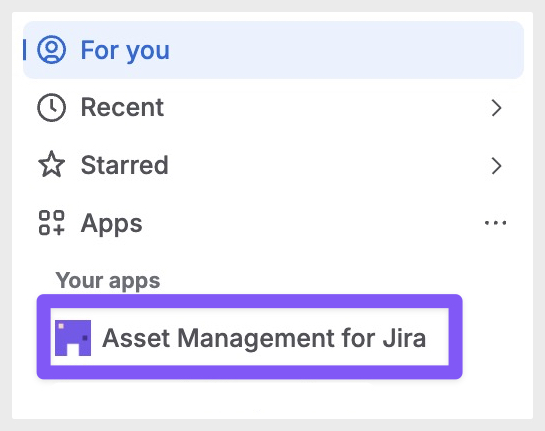
-
At the onboarding screen, select Explore with sample data.
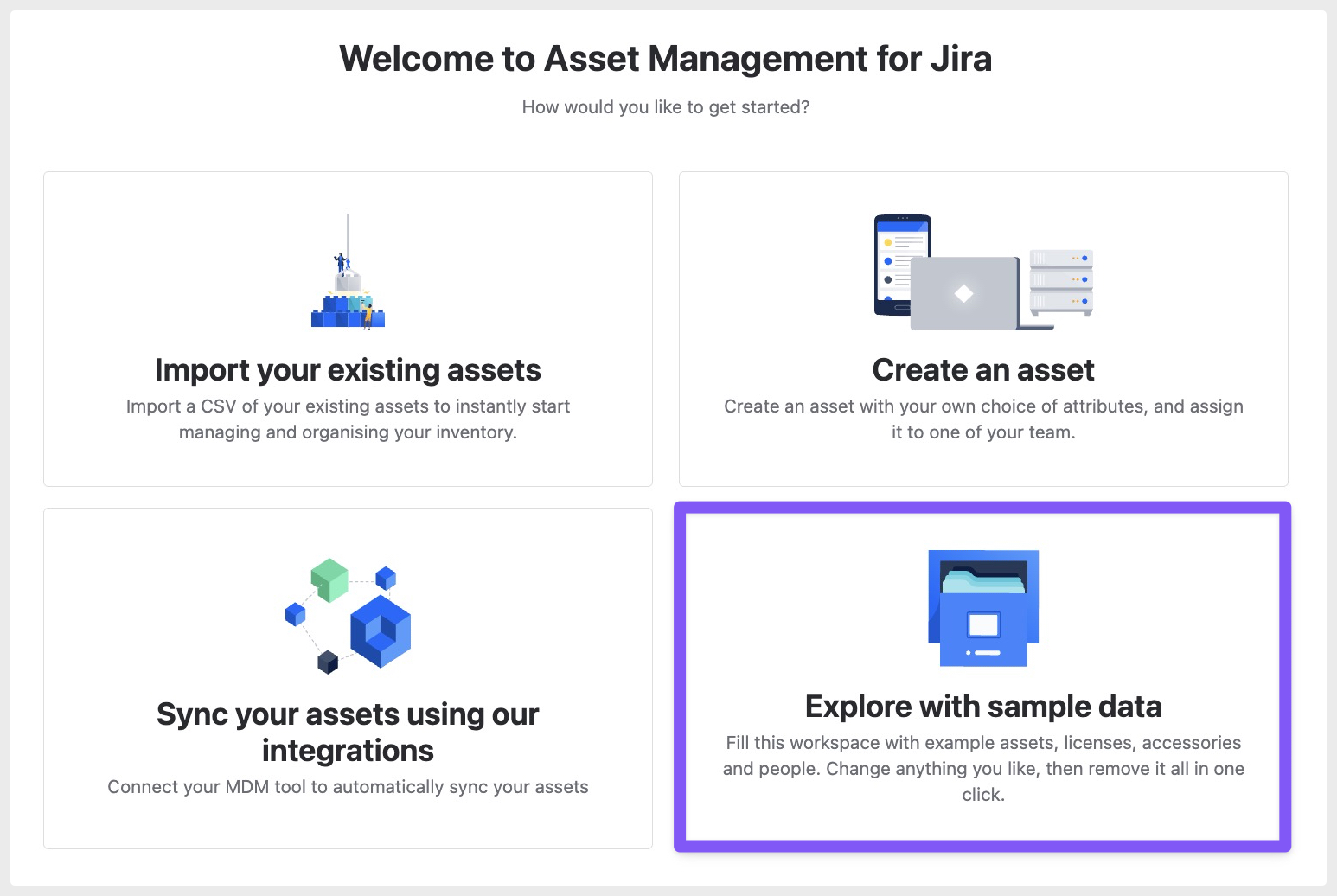
- 32 assets across the three default asset types (Laptop, Phone, and Server)
- 6 licenses, with some seats already assigned
- 6 accessories
- 9 fictional users
- 2 locations (Berlin office and Remote), alongside your default Head office
While sample data mode is on, you'll see this banner at the top of the screen:

Removing Sample Data
When you're ready to add your own data, select Remove sample data under Sample Data in the left sidebar menu. This deletes all of the sample data in one click. Any Asset, License, Accessory, or User you've added yourself stays put.

Please don't hesitate to reach out to us at support@assetmanagementforjira.com if you have any questions or feedback.