Add AMFJ Reports to a Confluence Page
Connect AMFJ to Confluence
- Go to admin.atlassian.com and select your organization.
- Go to Apps > Sites, then select your site.
- Select Connected apps.
- Find Asset Management for Jira in the list and select it.
- Open the Connections tab.
- Next to Confluence, select Connect.
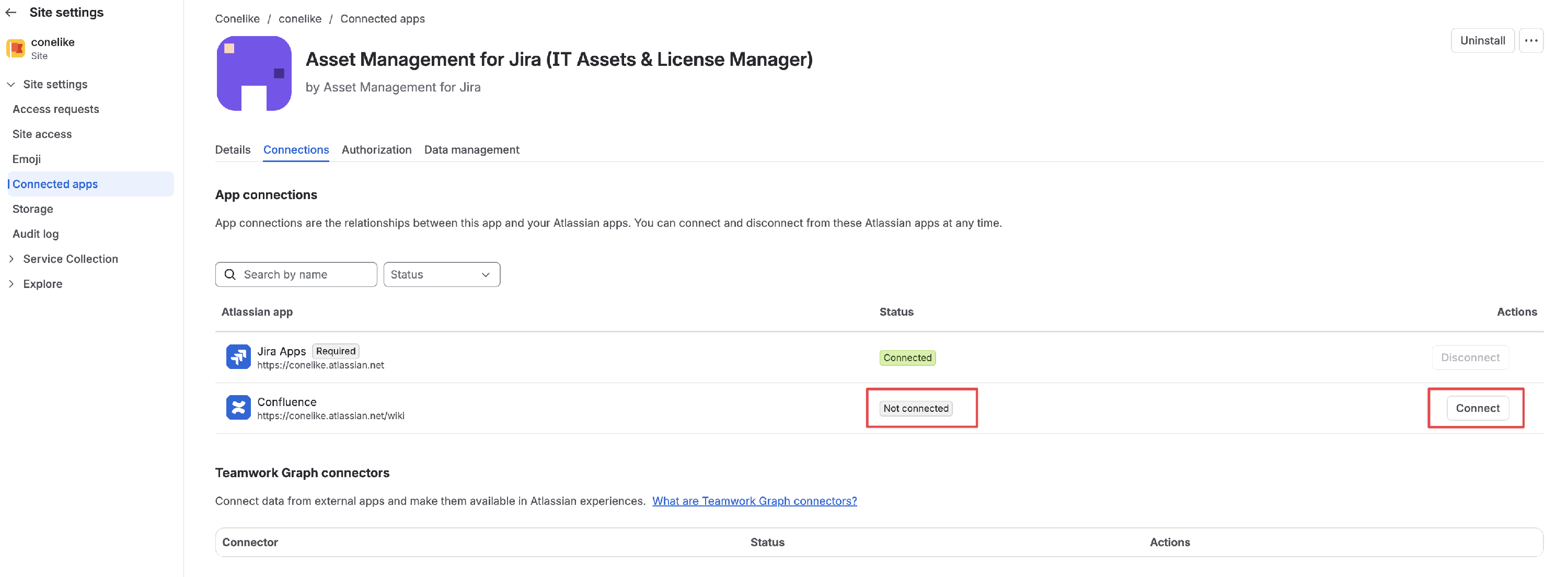
When the status shows Connected, the macro is available in Confluence right away. To remove it later, return to this tab and select Disconnect.
Don’t see Confluence on the Connections tab? Check that Confluence is on the same site as Jira. If it is and the option still doesn’t appear, contact us. Your site may be running an older installation of AMFJ that needs an update first.
Add a report to a page
You need permission to edit the page and access to AMFJ in Jira. Only people with AMFJ access can choose a report.
- Create a report in AMFJ, if you don’t already have the one you want.
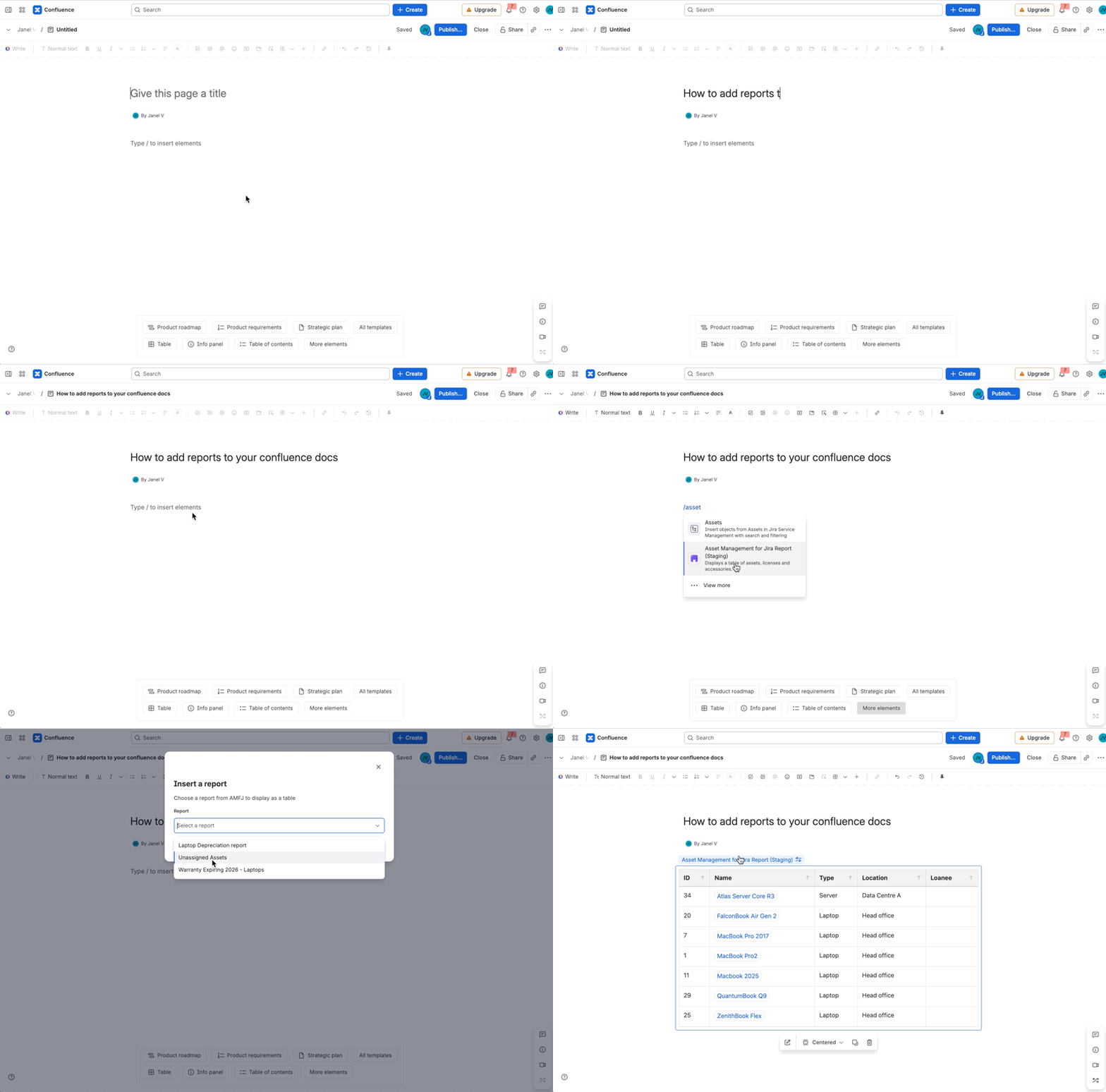
- In Confluence, open a page for editing.
- Type / and search for Asset Management for Jira Report. You can also find it under Insert elements (+) in the toolbar.
- In the Insert a report dialog, choose a report from the Report list.
- Select Insert, then publish the page.
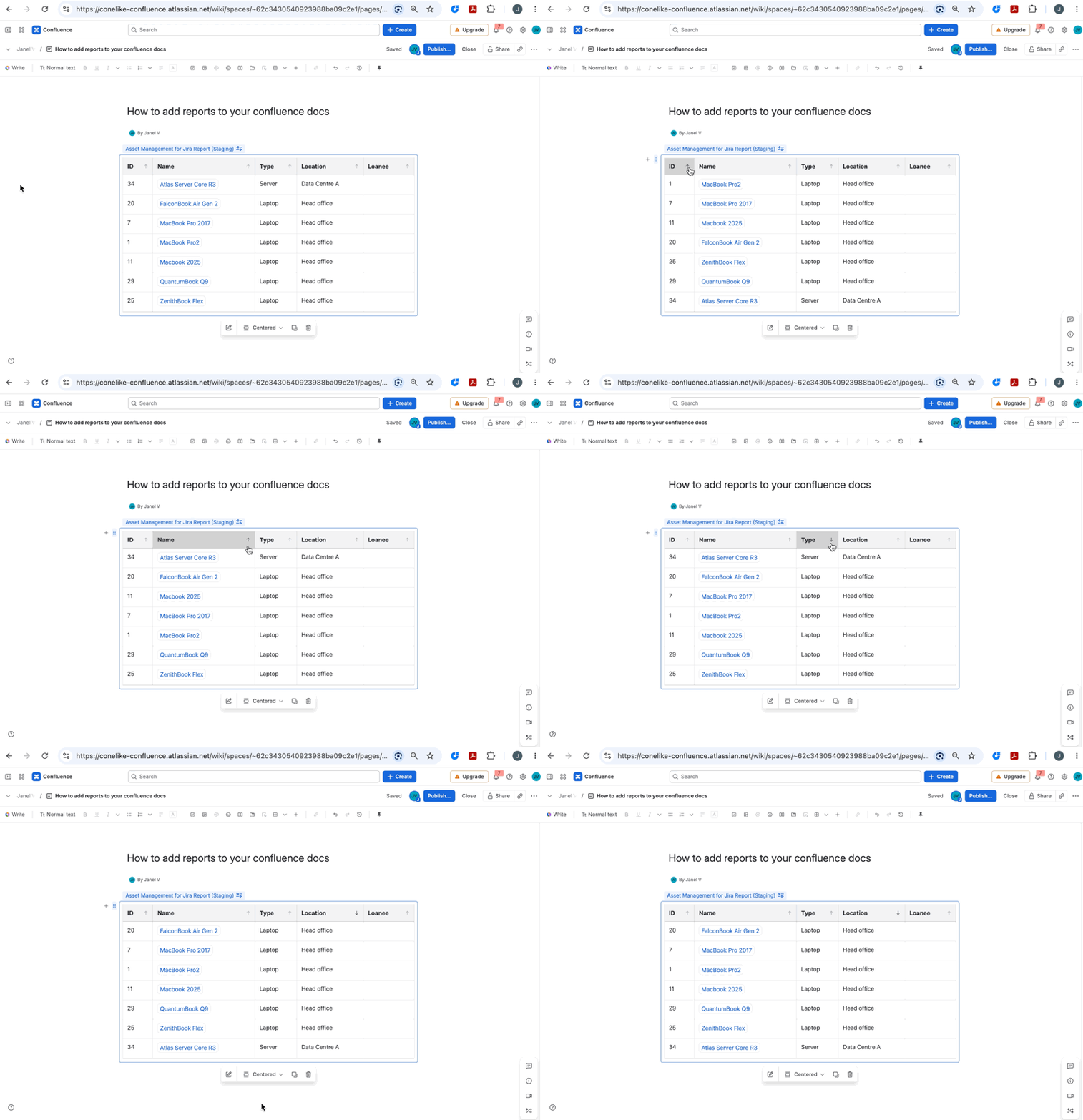
To switch the page to a different report, edit the page, select the macro, select the edit (pencil) icon, and choose another report.
Who can see the report
Anyone who can view the page can view the report. That includes people without Jira or AMFJ access. If the page is public, it includes anonymous visitors too.
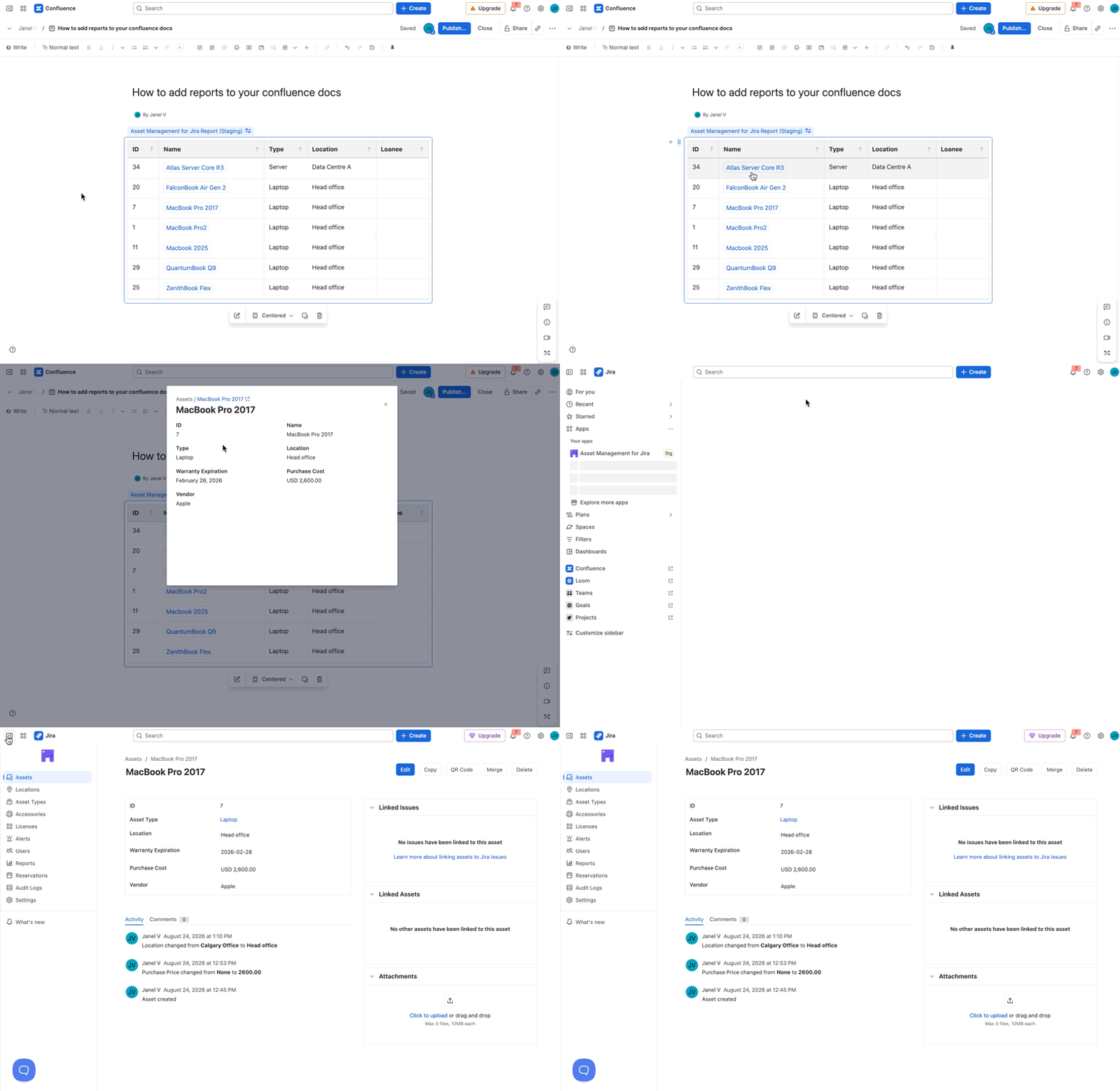
Confluence page permissions are the only access control on an embedded report. They also control who sees the full details that open when someone selects a row. Check who can view the page before you embed a report. If a report contains sensitive information, such as serial numbers, assigned users, or costs, put it on a restricted page or space.
Troubleshooting
| What you see | What it means / what to do |
|---|---|
| The macro doesn’t appear when you type / | AMFJ isn’t connected to Confluence yet. Ask an admin to follow the steps above. |
| ”To choose a report, log in with access to Asset Management for Jira.” | Only people with AMFJ access can choose a report. Ask your Jira admin for access, or ask someone who has it to insert the macro. |
| ”No reports yet” | Nobody has created a report in AMFJ yet. Create one in AMFJ, then return to the page. |
| ”Asset Management for Jira isn’t set up on this site.” | AMFJ isn’t installed in Jira on this site, or it was uninstalled. |
| ”Asset Management for Jira is currently unavailable on this site.” | The AMFJ subscription on this site isn’t active. Contact your Jira admin. |
| ”This report is no longer available.” | The report was deleted in AMFJ. Edit the page and choose another report. |
| ”This report is busy right now — try again in a moment.” | Many people are loading the report at once. Wait a few seconds and refresh. |