Using the Asset Management for Jira agent in Rovo Chat
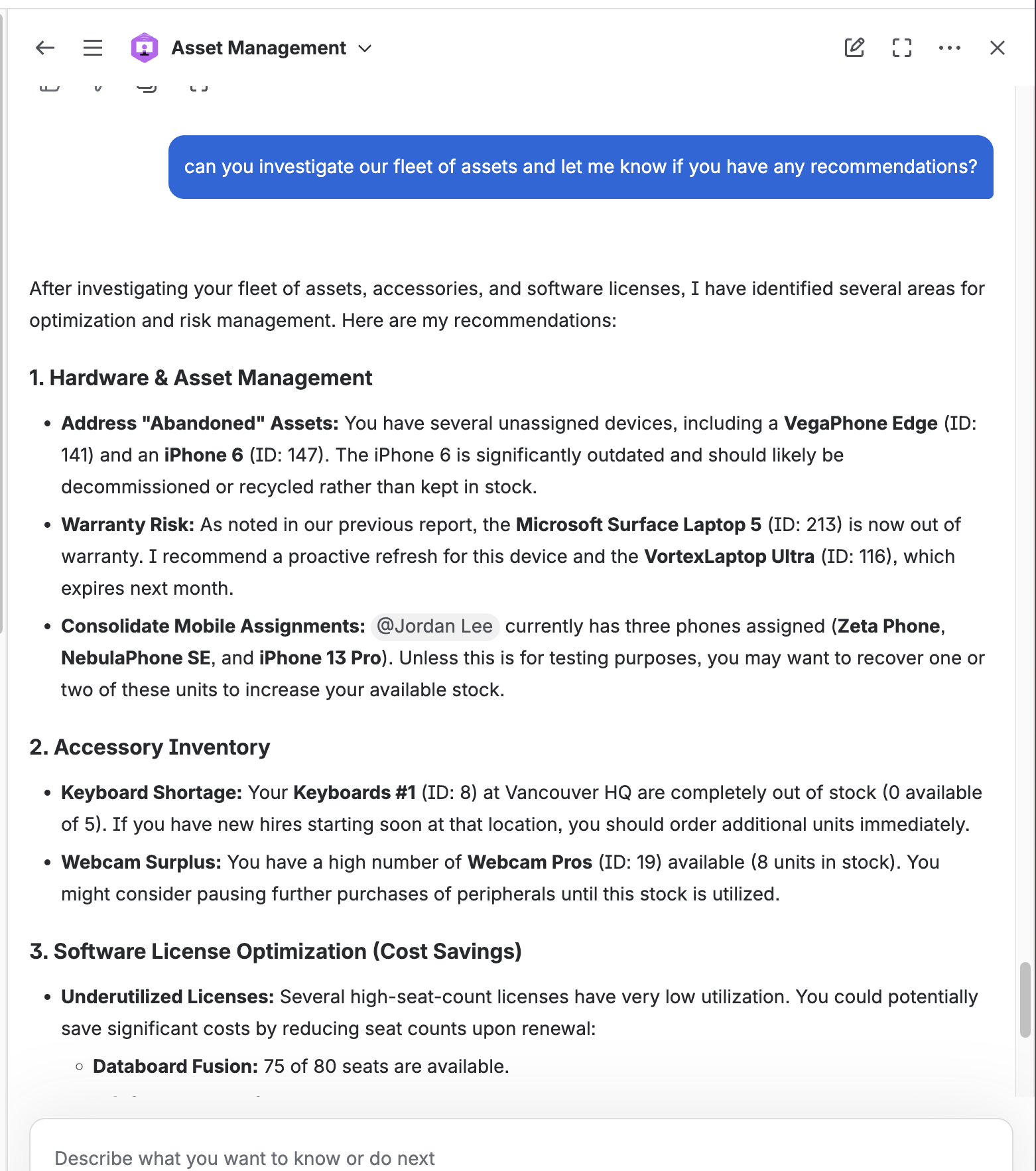
Asset Management for Jira includes a Rovo agent that lets you ask about your inventory and make changes to it in plain language.
In this article
Permissions & Plans Access
Plans with access
Atlassian Rovo must be enabled for your organization. Rovo Chat is available on Jira Premium and Enterprise Cloud plans. The agent itself is included with Asset Management for Jira at no extra cost.
User roles and permissions
All users can open the agent. It acts as you, so it can only see and change what your Asset Management permissions already allow.
What is the Asset Management agent?
The agent connects Rovo Chat to your AMFJ data. It answers questions about assets, licenses, accessories, people, and locations, and it can make a defined set of changes on your behalf.
There's nothing to set up. If Rovo is enabled and the app is installed, the agent is there.
Find the agent
- In Jira, click Ask Rovo in the top navigation.
- Select Browse Agents.
- Search for Asset Management and select it to start a conversation.
What you can ask
Just type what you want in your own words.
A few examples to get you started:
Find out who has what
"What assets are assigned to Sarah Chen?"
"Who has seats on Figma?"
"Which laptops in the London office are unassigned?"
Check what's available
"Which licenses have free seats?"
"How many docks do we have in stock?"
Equip someone
"Assign MacBook-042 to Jane Doe."
"Assign a Figma license to Jane Doe."
"Set Jane up with a laptop, a Figma seat, and a dock."
Take equipment back
"Check in MacBook-042."
"Revoke Tom's Figma seat."
Keep your inventory current
"Create a new asset called MacBook-118, type Laptop, in the London office."
"Add a new accessory: USB-C Dock, 25 units."
The agent remembers the conversation, so you can narrow things down instead of
starting over: "Which laptops are unassigned?" → "Which of those are in London?" →
"Check out the first one to Jane Doe."
How changes are confirmed
The agent never changes anything without asking you first. Before it acts, it tells
you exactly which records it found — not just the words you typed:
I'll check out MacBook-042 to Jane Doe (jane@acme.com). Confirm?
Nothing happens until you say yes. And if your request is ambiguous, e.g. two people
named Jane, or several laptops matching your description, the agent lists the options and asks which one you meant.
What the agent can't do
The agent cannot delete anything, change your app settings, or edit people,
locations, or asset types. It can create those, but not modify or remove them.
Ask for one of these and it will tell you it isn't available and suggest the closest
alternative, e.g. changing its status, for example, instead of deleting it.
Things to know
- Each lookup returns up to 25 records. For broad questions against a large inventory, the agent only sees the first 25 matches, so don't rely on it for counts or complete lists. Narrow your question, or use the app's filtered views instead.
- It works one record at a time. There's no bulk action. Checking in forty laptops means forty confirmations.
- Every change is recorded under your name in the asset history, exactly as if you'd made it in the app.
- AI can get things wrong. Always read the confirmation before approving it - what's in the preview is what gets applied.
Still have questions? Email us at support@assetmanagementforjira.com.